


Computer System Transfer and Disk Cloning
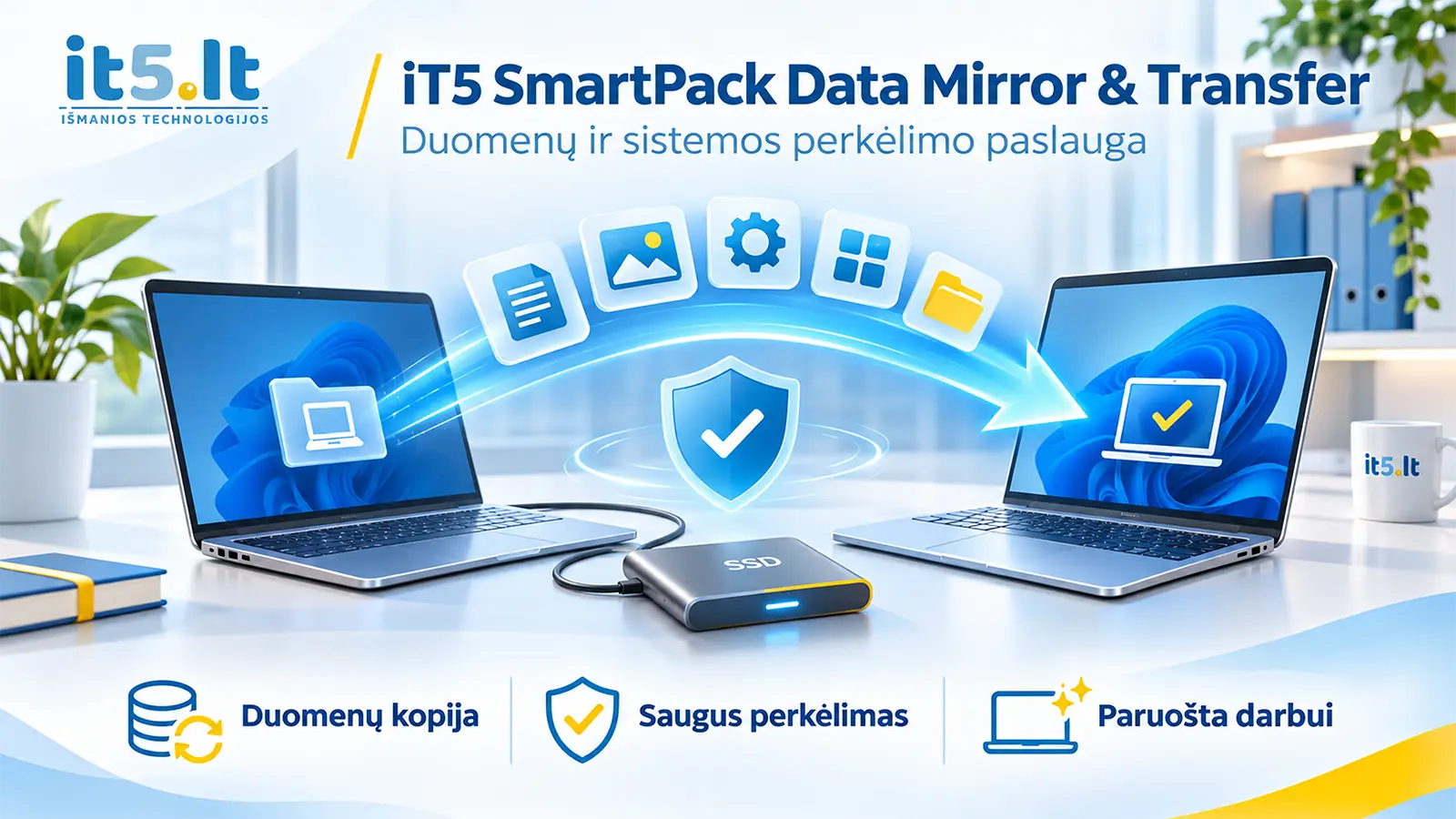
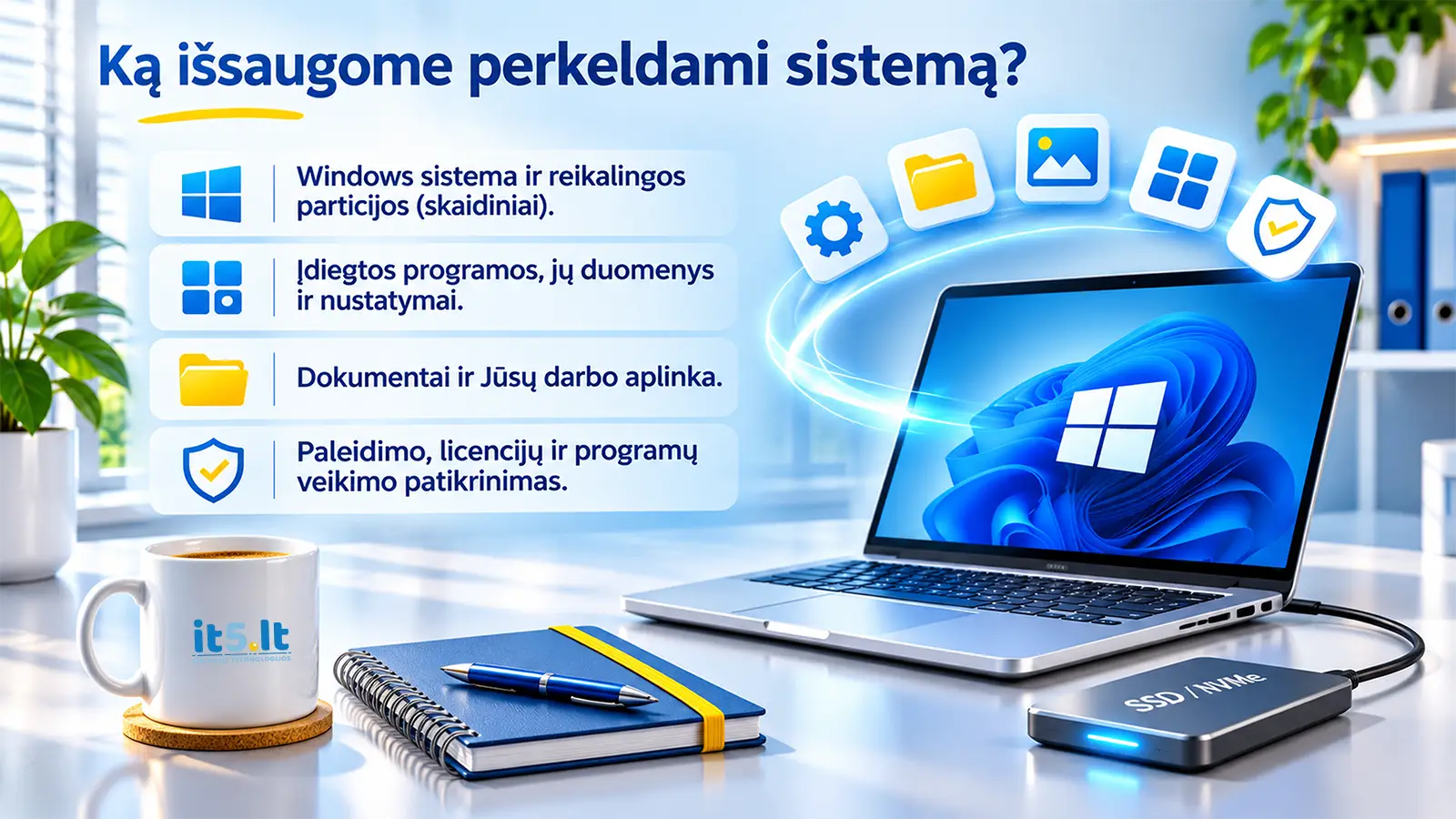
Replacing an old drive or moving to another computer? You don't necessarily need to rebuild your entire working environment. We can help transfer your Windows installation, installed applications, settings, and files stored on the disk partitions included in the transfer.
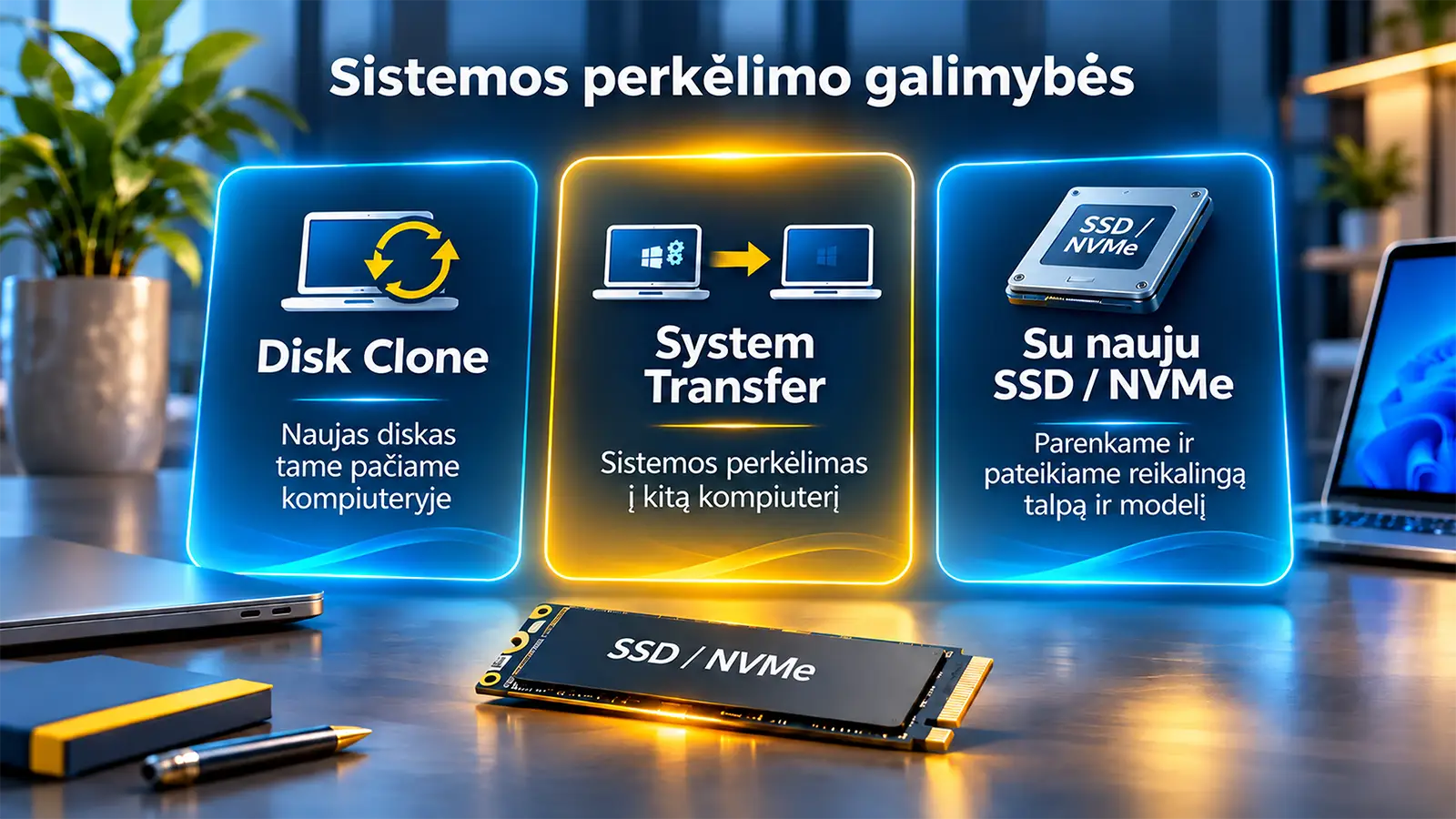
Disk cloning within the same computer when the customer supplies the replacement drive. All service prices, including options with a new SSD / NVMe drive, are listed below.
Services and Prices
All prices are clearly presented excluding and including 21% VAT. Packages that include a new drive are based on a compatible, standard-class SSD or NVMe drive. The drive type, model, and capacity are confirmed according to the computer's compatibility requirements.
Disk Cloning Within the Same Computer
We replace the existing HDD, SSD, or NVMe drive and transfer the agreed system content to another drive while retaining the same computer.
| Service and Included Hardware | Excl. VAT | Incl. VAT |
|---|---|---|
| Disk Cloning Transfer to another drive within the same computer. A replacement drive is not included. | 100€ | 121€ |
| Disk Cloning + 500GB SSD / NVMe Cloning service and a new standard-class drive. | 219€ | 264,99€ |
| Disk Cloning + 1TB SSD / NVMe Cloning service and a new standard-class drive. | 289€ | 349,69€ |
System Transfer to Another Computer
We transfer your existing Windows working environment to another compatible computer. Before starting, we evaluate hardware compatibility, drivers, startup configuration, and software licensing.
| Service and Included Hardware | Excl. VAT | Incl. VAT |
|---|---|---|
| System Transfer to Another Computer A new drive is not included. | 149€ | 180,29€ |
| System Transfer + 500GB SSD / NVMe System transfer service and a new standard-class drive. | 269€ | 325,49€ |
| System Transfer + 1TB SSD / NVMe System transfer service and a new standard-class drive. | 339€ | 410,19€ |
What Is Disk Cloning?
Disk cloning is the process of transferring the operating system and the contents of selected disk partitions to another storage device. The main objective is to preserve your familiar Windows environment, applications, and settings when replacing an old drive, without having to install everything from scratch.
When a computer is technically sound, replacing its storage drive is often more practical than replacing the entire machine. A new SSD / NVMe drive may improve system responsiveness if the previous drive was limiting performance.
How Do We Perform the Service?
- Initial Assessment. We evaluate the existing drive's condition, used storage space, available connections, encryption, and system startup requirements.
- Choosing the Right Solution. We select a suitable SSD / NVMe drive or check the replacement drive supplied by the customer. When transferring a system to another computer, we additionally assess hardware compatibility.
- System Transfer. We copy the agreed system partitions, applications, and data stored within those partitions to the replacement drive.
- Final Verification. We check Windows startup, essential applications, and the settings required for everyday work.
Moving Windows to Another Computer
Transferring a system to another computer involves more than simply copying its data. Different computers may use different storage controllers, UEFI settings, drivers, and software licensing arrangements. For this reason, each system migration is evaluated individually.
- Identical or Very Similar Computer: Usually the most favourable situation for a system transfer, although compatibility still needs to be verified.
- Different Hardware Generation or Configuration: Additional adjustments to startup settings, drivers, or software activation may be necessary.
- Significantly Different Hardware Platform: In some cases, a clean Windows installation followed by a separate data transfer is the safer approach. We discuss this before beginning the work.
How Do We Choose a New SSD or NVMe Drive?
Not all drives with the same storage capacity offer the same performance or reliability. We consider hardware compatibility, reliability, workload intensity, and the required level of performance.
- Office Computers: A reliable, cost-effective drive with sufficient capacity for everyday applications and documents.
- Gaming Computers: Greater emphasis on storage capacity, sustained performance, and cooling.
- Professional Workstations: We consider sustained workloads, endurance (TBW), and the volume of data processed.
- Servers: Storage requirements and the scope of work are assessed individually according to the server's purpose.
If a standard-class SSD or NVMe drive is not sufficient, we provide a separate quotation for a higher-class or larger-capacity storage device.
Frequently Asked Questions
Will Windows, Applications, and Documents Be Preserved?
This is our primary objective. When cloning a drive within the same computer, the data, applications, and settings stored on the copied partitions can generally be preserved. We verify system startup after the transfer. However, if the original Windows installation is already damaged, some of its existing problems may also be transferred.
Can an Old HDD Be Replaced with a Faster SSD or NVMe?
Yes, provided the selected storage device is compatible with the computer. NVMe drives require a suitable connection and hardware support. If NVMe is not supported, we select an appropriate SSD alternative.
Can a System Be Cloned to a Smaller Drive?
In some cases, yes. The required data must fit on the new drive, and it must be possible to resize the disk partitions correctly. We evaluate the actual amount of used storage before confirming whether this is possible.
Will Software Licences Continue to Work on Another Computer?
Not always. Windows and paid software activation may depend on the original hardware and the applicable licence terms. Some applications may need to be activated again, and certain licences cannot legally be transferred to another computer.
What If the Original Drive Is Failing?
We first assess the drive's condition and the risk of data loss. If the drive has read errors or other serious faults, specialised data recovery procedures may be required. These procedures are not included in the standard cloning price.
Is the Original Drive Erased After the Transfer?
Not automatically. We first verify the new system. Returning, retaining, or securely erasing the original drive is arranged separately.
Will Disk Cloning Fix an Existing Windows Problem?
Not necessarily. Cloning transfers the existing system state, including any corrupted files, incorrect settings, or malicious software that may already be present. In such cases, system repair or a clean installation may be a more appropriate solution.
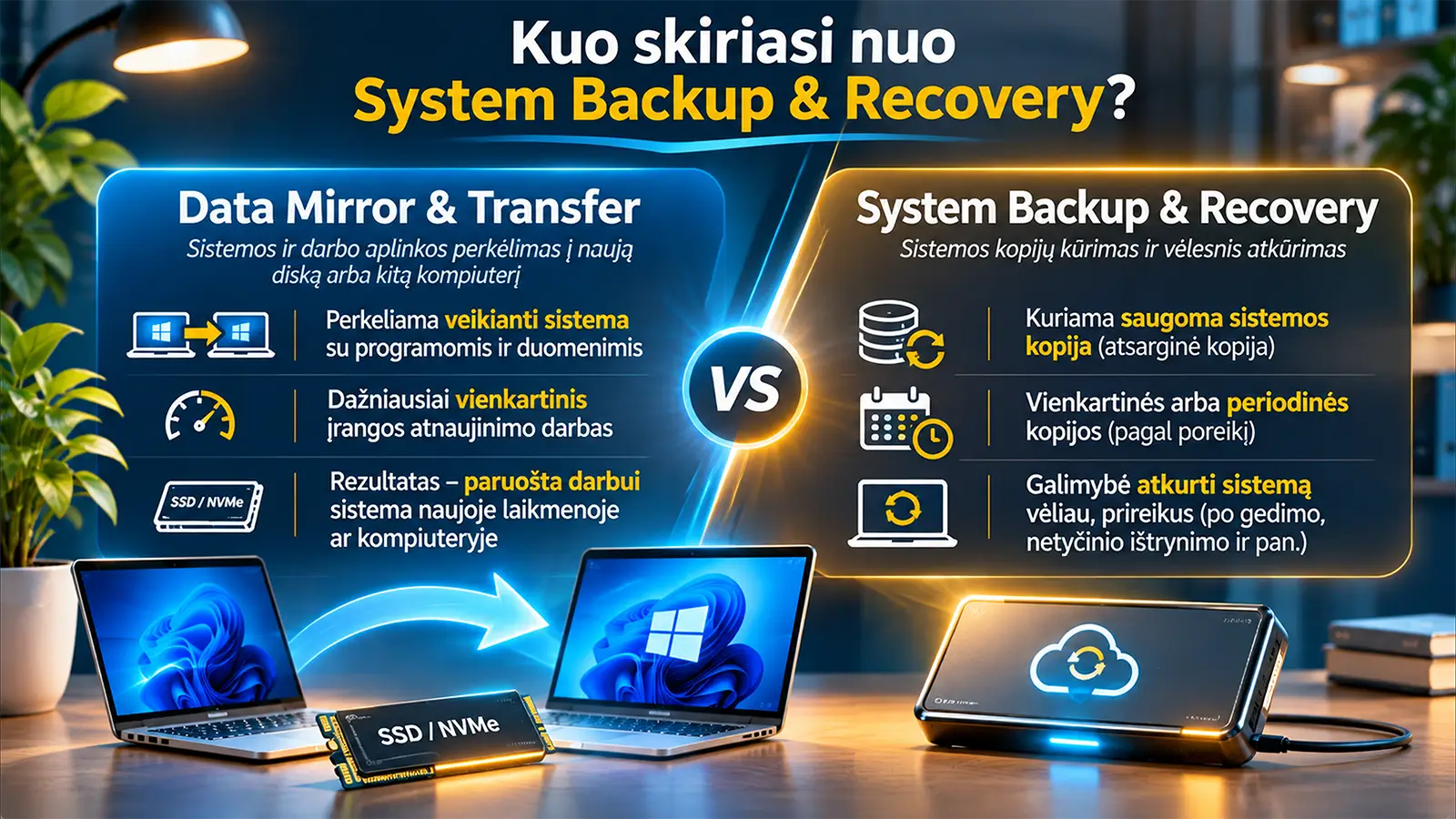
How Is This Service Different from System Backup?
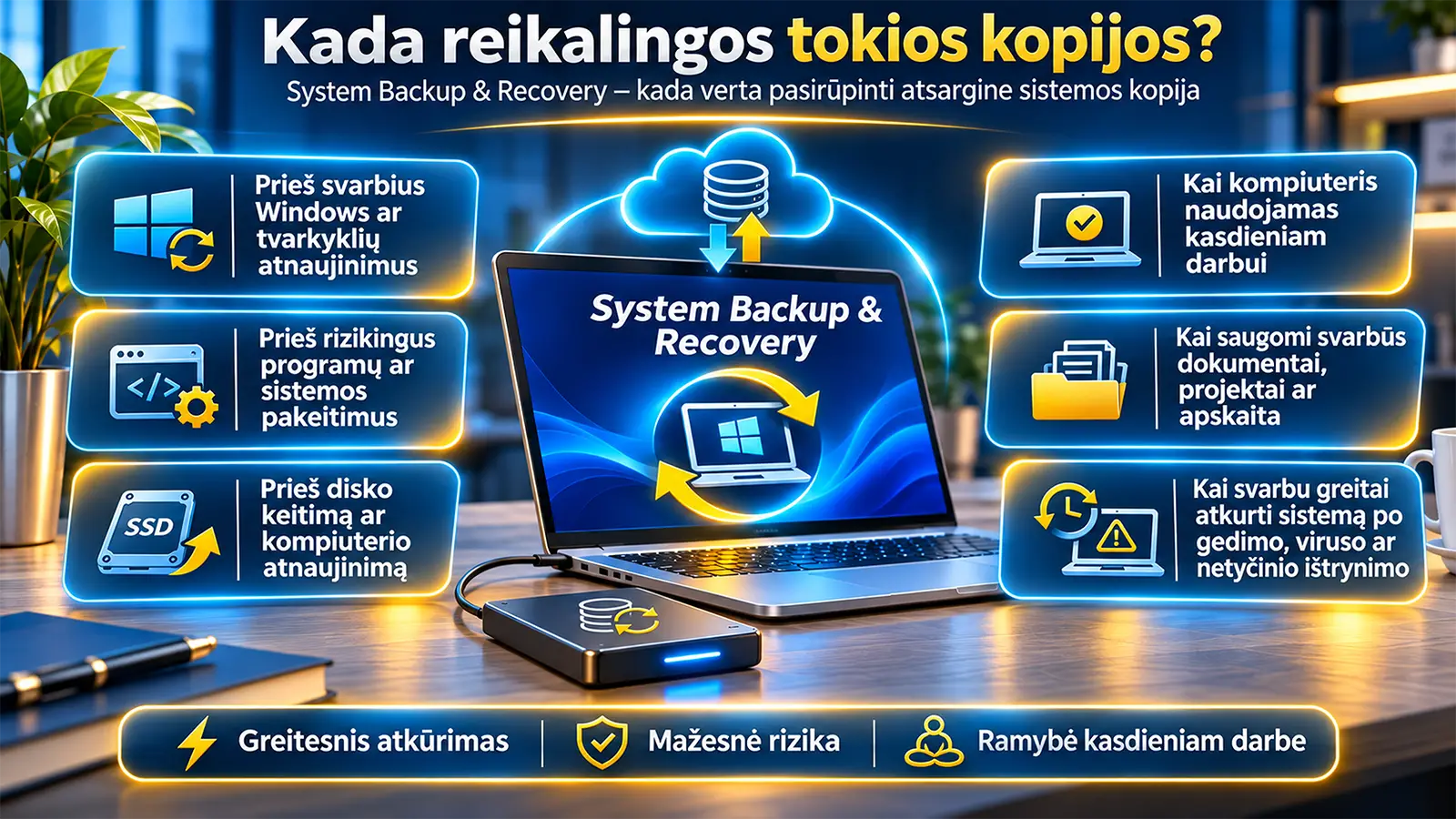
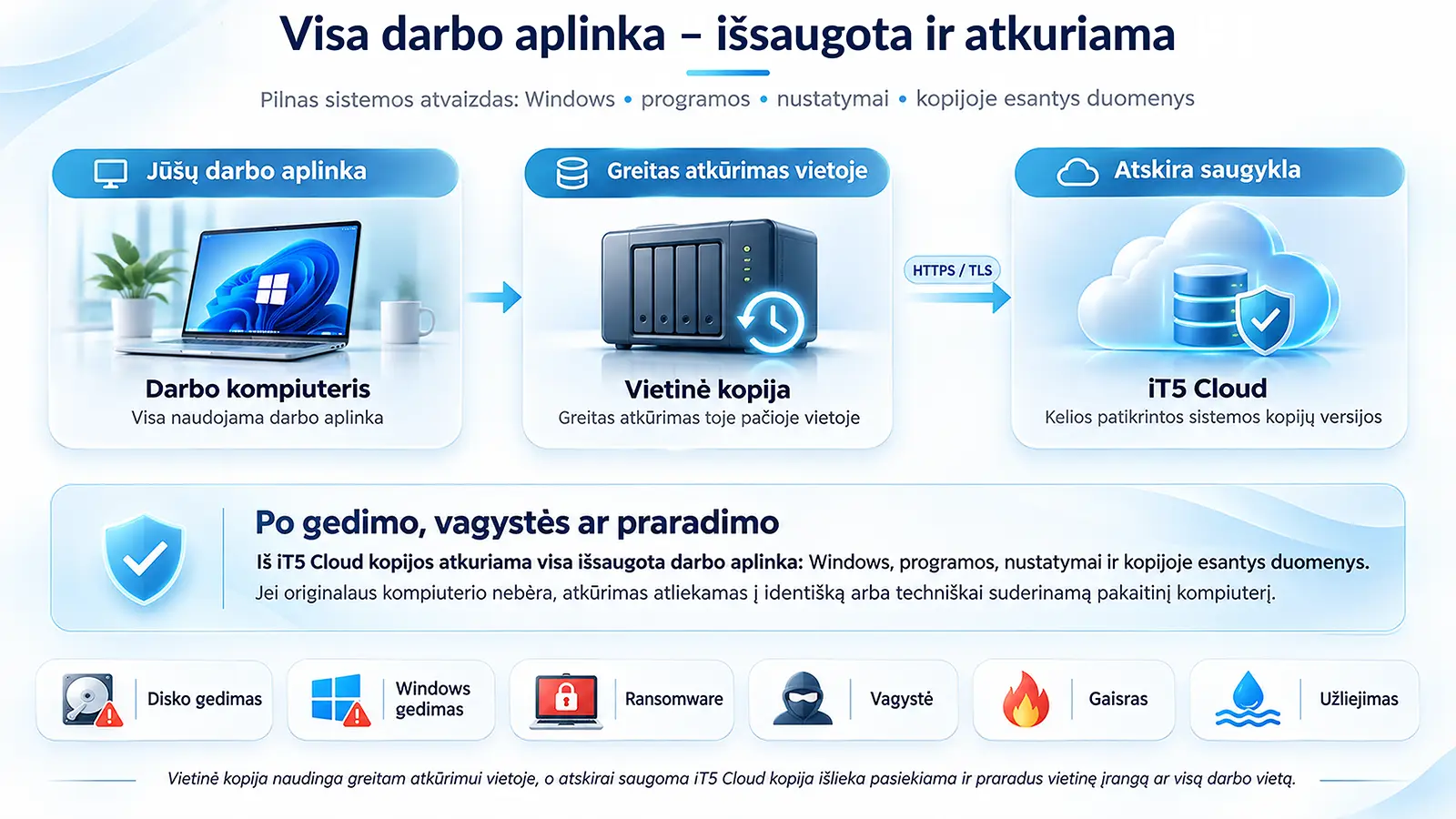
System Transfer is intended to help replace a drive or move to another computer now. Computer System Backup and Recovery is a separate service designed to preserve earlier system states so they can be restored after hardware failure, loss, or other unexpected events. Installing a new SSD does not replace the need for a proper backup.
What Is Included in the Service Price?
- Initial assessment of drive and system compatibility.
- Disk cloning or system transfer according to the agreed scope.
- Verification of Windows startup and essential working functions.
- Clear explanations if additional work or software licensing actions are required.
- The option to select a service package with a new standard-class SSD / NVMe drive.
No posts found