
Business workstations
We have restored Windows systems complete with employees’ applications, user profiles, familiar settings and documents included in their backups.
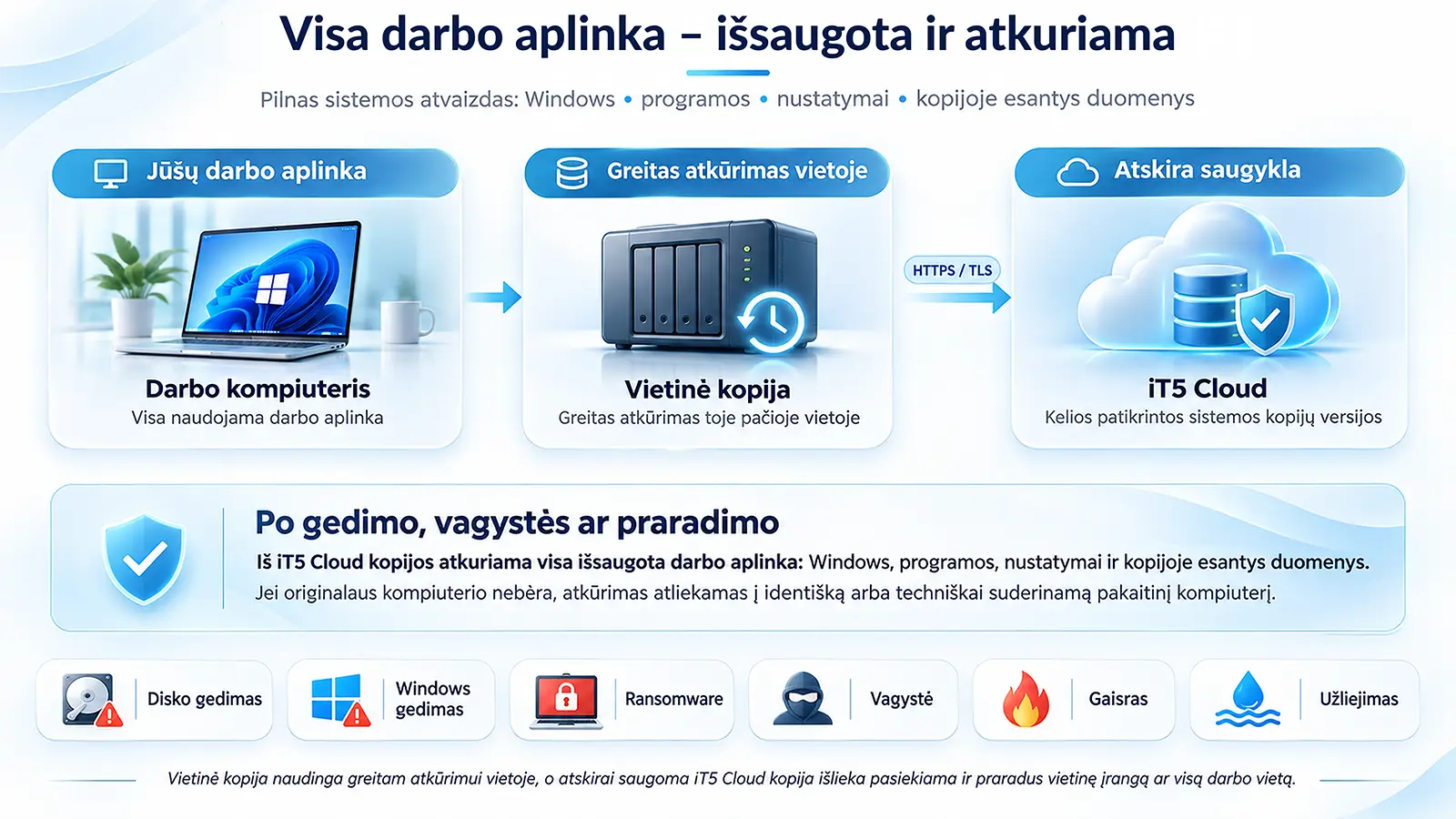


System Backup & Recovery | Your Windows Work Environment Preserved
A failed computer should not mean rebuilding your entire work environment from scratch. A full system backup lets you restore the Windows installation, applications, settings, documents and familiar workspace preserved when the backup was created.
We have been using full system backups on our own computers for around ten years, and we still create them regularly today. Before testing new software, installing major updates or changing Windows settings, we make a fresh backup so we can return to an earlier, properly functioning system whenever necessary.
After several years of successful use, we began offering the same approach to our customers. It has helped businesses, lawyers, writers, professional workstation users and other specialists recover their familiar working environments.
Read about our experience ↓When a computer fails, the loss often goes far beyond the hardware. Years of documents, email archives, specialist application settings and a carefully configured workspace may be at risk. Over many years in IT, we have helped customers through a wide range of situations.
We have restored Windows systems complete with employees’ applications, user profiles, familiar settings and documents included in their backups.
Important legal documents, correspondence, specialist software and individually configured working environments.
On several occasions, we have recovered lost drafts from earlier backups. Sometimes a single document is worth more to its owner than the entire computer.
When local email data files become damaged, backed-up archives and application settings may help recover important correspondence.
Engineering, creative and specialist systems depend on specific combinations of installed software, custom settings and carefully prepared workflows.
We have recovered critical software environments after technical incidents. Backup and recovery procedures for active databases are planned individually.
Our approach combines the convenience of local recovery with an additional copy stored separately. Not every plan requires extra equipment at the customer’s premises.
Windows • applications • settings • documents
Available at the customer’s location when included in the solution
Backups from multiple dates, stored separately from the customer’s local network
Scheduled backup solutions may use both local and separate storage. When a one-time backup is created at iT5 premises, the customer does not need to purchase an additional drive or storage device.
This is more than copying document folders. We preserve the agreed state of an entire disk, or the necessary disk partitions, at a specific point in time.
After replacing a failed drive, a full backup can restore the Windows work environment as it existed on the backup date, including applications, settings and data. This avoids having to reinstall and configure the operating system and all your applications from scratch.
Saved sign-ins are normally restored as well, although some online services, two-factor authentication systems and software licences may require renewed verification for security reasons.
The system can be recovered onto an identical or technically compatible replacement computer. Different hardware may require adjustments to drivers, licences, boot settings or sign-ins.
| Recovery destination | What can be restored? |
|---|---|
| Same computer, replacement drive | Windows, applications, settings, data and the familiar workspace as of the backup date. |
| Identical replacement computer | The system is restored, boot operation verified and any required application activation checked. |
| Technically compatible computer | Recovery with any necessary driver, licence or sign-in adjustments. |
| Incompatible hardware | An individual system setup and data recovery solution is arranged. |
The entire backed-up working environment is restored onto a replacement drive.
Restore an earlier, properly functioning system state.
Return to the previous system and its settings.
An earlier backup may help restore email data and the application environment.
Retrieve the document from a backup created on a suitable date.
Use a suitable backup made before the incident.
The system may be recovered onto technically compatible replacement hardware.
Select the required system backup from an archive containing multiple dates.
The key question is simple: how much recent work could you afford to lose if you had to restore the last backup? The more data changes each day, the shorter the interval between backups should be.
| Computer use | Suggested plan | Why? |
|---|---|---|
| Personal or infrequently used computer | One-time, semi-annual or annual | The main priority is to have a complete system backup available. |
| Standard business workstation | Monthly or weekly | More frequent backups reduce the amount of recent work potentially lost. |
| Business-critical workstation | Weekly | Applications and working files change frequently. |
| Critical server / accounting system | Individually planned, daily or more often if needed | Database consistency and recovery objectives must be agreed in advance. |
The schedule determines how often a backup is made. CS-Cart calculates the final order amount and VAT based on the selected service option.
| Backup schedule | Per backup, excl. VAT | Per backup, incl. VAT | Archive retention |
|---|---|---|---|
| Every week | 30€ | 36,30€ | 3 months |
| Every month | 50€ | 60,50€ | 6 months |
| Every quarter | 89€ | 107,69€ | 12 months |
| Every six months | 120€ | 145,20€ | 12 months |
| Once a year | 156,20€ | 189€ | 12 months |
| One-time backup | 156,20€ | 189€ | As agreed at the time of ordering |
Contract duration: weekly, monthly, quarterly and semi-annual plans are subject to a 12-month agreement. Backup dates and the actual schedule are agreed in advance.
Weekly backup archives are retained for 3 months; monthly archives for 6 months; and quarterly, semi-annual and annual archives for 12 months. When a recurring service agreement ends, the latest system backup is additionally retained for another 3 years. The retention period for a one-time backup is agreed when ordering.
Figures are based on the stated number of backups; actual charges depend on the agreed schedule and the number of backups performed.
| Plan | Backups per 12 months | Total incl. VAT |
|---|---|---|
| Weekly | 52 | 1 887,60€ |
| Monthly | 12 | 726€ |
| Quarterly | 4 | 430,76€ |
| Semi-annual | 2 | 290,40€ |
| Annual | 1 | 189€ |
Local storage installation and any additional equipment required are not included in plan prices.
↑ Return to the beginning| Service | Price | What is included? |
|---|---|---|
| Full system recovery | 30€ + VAT | Standard recovery at iT5 premises. A replacement drive, hardware adaptation and non-standard work are not included. |
| Selected file recovery | 15€ + VAT | Retrieve selected documents from an existing backup without restoring the complete system. |
| On-site technician visit in Vilnius | 50€ + VAT | Call-out charge, additional to the selected service. |
| Critical server recovery plan | Quoted individually | Scope and pricing are agreed according to the server, applications, databases and urgency of the work. |
Standard recovery work is performed during agreed business hours. Priority response, out-of-hours assistance or an individual business recovery plan can be arranged in advance for critical systems.
24/7 availability and guaranteed response or recovery times are not included in standard plans; such commitments require a separate agreement.
We create a full system backup, verify its integrity and store it according to the agreed plan. You do not need to buy a separate drive.
System backup work is performed at the agreed location. A visit within Vilnius costs an additional 50€ + VAT.
We agree on a schedule and, when necessary, set up local storage and additional backup storage in iT5 Cloud. Equipment and installation are quoted separately.
Where technically feasible, we schedule recurring backups to minimise disruption to daily work. Active databases and servers require procedures appropriate to their operation.
A local file server, network storage device or permanently connected external drive is convenient for everyday use. However, if an infected computer has permission to modify files in shared folders, malware may also affect the data and backups stored there.
Separate storage in iT5 Cloud provides an additional recovery option when the local network or hardware becomes unavailable.
Backups are protected by encryption.
Encrypted connections are used when transferring data.
Restricted access, authentication and additional security safeguards are applied.
The technical integrity of each created backup is checked.
Choose a system state from before a detected fault or software problem.
Backups are stored independently of the customer’s on-site working equipment.
These cases are presented anonymously, without disclosing customer names or details that could identify their IT infrastructure.
The system drive in an e-commerce company’s accounting server failed. Full system backups had been created daily and stored separately within the iT5 backup environment.
We restored a full system backup onto a replacement drive, delivered the prepared drive to the company, installed it and verified the operation of the most important applications.
Outcome: the recovery work took several hours. Before the next business day began, the accounting system’s working environment was restored, enabling the company to resume order processing.
Another e-commerce company had approximately ten employee computers and a shared file server on its network. Employees had persistent access to shared folders used for documents and some computer backups.
One morning, the company discovered a widespread ransomware attack affecting both employee computers and the file server. Local files and some backups had been encrypted and were inaccessible. The existing RAID arrays and antivirus protection did not stop this particular incident.
How could this happen? If a computer has permission to modify files in shared folders on a server, malware operating with those permissions may also affect those files. RAID does not reverse encryption or deletion of data.
What made recovery possible? Separate system backup copies stored in iT5 Cloud were unaffected by the incident on the customer’s local network and remained available for recovery.
Outcome: Using those separately stored backups, we recovered critical data and restored the operation of the essential accounting system. Within one day, the company was able to resume its key business processes and continue fulfilling e-commerce orders.
Not all ransomware attacks behave in the same way. Attackers may encrypt accessible files and demand payment, but paying a ransom does not guarantee that the data will be recovered.
Our aim is not only to offer a service, but also to help you avoid losing valuable work. If you do not yet have a dedicated backup solution, start with a simple habit: save an additional copy of an important document after making significant changes.
This is especially useful when writing a book, preparing a thesis, drafting a lengthy contract or working on any document that would take considerable time to recreate.
For personal, non-confidential documents, you can use a separate Google account: email a copy to yourself through Gmail or upload it to Google Drive. A free account may include up to 15 GB of shared storage across Drive, Gmail and Photos, depending on the account’s terms.
Save files under different names or include the date in the filename. Protect important accounts with two-factor authentication, and never keep the only backup of a document on the same computer.
For confidential company documents, customer information and personal data, use storage approved by your organisation and follow GDPR and internal security requirements. A simple cloud copy of a document is not a replacement for a full Windows system backup.
In our experience, many people could back up their documents themselves, but struggle to find the time. They must decide what to save, when to do it, where to keep copies and how to verify them. After work, they want to rest; during the day, preparing backups takes time away from their main responsibilities.
A full system backup protects the entire agreed work environment on the backed-up disk in a single operation. There is no need to hunt down application settings, gather files from dozens of folders or rebuild an environment that has already been carefully configured.
RAID arrays, local full system backups, files manually copied to USB media and an archive stored separately in iT5 Cloud serve different purposes. Choose a topic below to explore all the scenarios included in our V8 service specification.
This comparison reflects typical characteristics of each approach. Actual recovery options depend on the backups available, their dates, how they were stored and which data has survived.
A fault-tolerant RAID configuration may allow work to continue.
Restores the system onto a suitable drive.
Restores the files that were copied.
Restores the complete Windows work environment preserved on the backup date.
The damaged Windows state remains.
Restore an earlier system state.
Windows must be installed separately.
Restore a working Windows system from an earlier date.
RAID also preserves unsuccessful changes.
Return to the state before the update.
Only the copied documents are preserved.
Restore the earlier Windows, application and settings configuration.
RAID does not protect against logical deletion.
Restore the system as it was when backed up.
Recover separately saved files.
Restore the full backed-up system and its data.
The array may require additional recovery work.
Restore onto other suitable hardware.
Recover the saved files.
Restore onto an identical or compatible replacement computer.
The deletion is reflected in the RAID array.
Restore an earlier document version.
Recover the document if it was copied.
Retrieve the document from a backup of the selected date.
Does not provide version history on its own.
Return to an older version of the file.
Only if an older version was saved on the USB device.
Select the earlier document from the archive.
RAID does not roll them back.
Restore the saved application environment.
Usually only files are backed up.
Restore the application, its settings and the data saved when the backup was created.
RAID does not restore an earlier logical database state.
Restore from a backup created using an application-compatible method.
A basic file copy is generally not sufficient.
Restore the backed-up database state using the agreed recovery procedure.
RAID does not provide historical versions on its own.
Use a local archive containing backups from multiple dates.
Older versions must have been saved separately.
Choose the required restore point from a multi-date archive.
RAID does not undo encryption.
Use an earlier system backup.
A disconnected USB backup preserves the files it contains.
Restore an earlier system and data state from the archive.
RAID only retains the current state.
Backups from several dates can help.
An earlier disconnected backup can help.
Choose a backup from before the identified incident period.
RAID also retains incorrect settings.
Restore the previous work environment.
Ordinary file backups usually do not include all system settings.
Restore Windows, applications and earlier settings.
RAID alone cannot restore historical versions.
Retrieve the required files from the backup.
Recover whatever was previously copied.
Restore files from the selected backup.
RAID located inside the computer is lost with it.
Survives if stored on another local device that was not stolen.
Survives if the USB device was kept elsewhere.
Restore the backed-up system onto a compatible replacement computer.
Local RAID equipment may be destroyed.
A local backup in the same building may also be lost.
Survives only if stored at a different location.
An off-site system backup allows the entire work environment to be recovered.
All local drives may be damaged.
Local backup storage may also be affected.
An off-site copy can help.
The system backup is stored separately and can be used to restore a computer.
RAID does not protect against every common-cause failure.
Can help if the backup storage survives.
Files on a disconnected device may survive.
Restore the entire backed-up system state.
The RAID array must be physically relocated or recovered.
The local backup must be accessed and transferred.
Saved documents can be carried to the new site.
Restore workstations at the new location from the cloud backups.
For a functioning RAID array, this is routine maintenance.
Restore the full backup onto the new drive.
Windows and applications would need to be reinstalled.
Restore the complete system to its original computer, matching the backed-up state.
RAID does not function as an independent operating system backup.
Restore the system backup onto the replacement computer.
Only documents can be restored.
Restore the Windows, applications, settings and data environment from separate storage.
RAID does not provide system migration by itself.
Possible with the necessary adaptation work.
Usually limited to file transfer.
Restore the full environment, adapting drivers and licences as needed.
Only the surviving current version is available.
Retrieve the document from the backup.
Open the document from the USB device.
Provide the document without restoring the entire system.
RAID cannot do this without separate backups.
Possible when the local archive includes version history.
An older saved version is required.
Choose the desired date from the available multi-date archive.
A functioning fault-tolerant RAID array may sometimes avoid downtime.
Local backups generally offer the fastest restoration.
Suitable for recovering a small number of files only.
The entire system can be restored; speed depends on transfer rates and hardware.
Local RAID can be used without internet access.
Local backups remain accessible.
USB storage works without internet access.
Restoring from the cloud requires connectivity or a backup obtained in advance.
No. A full system backup can include Windows, applications, their settings, the user environment and data on the backed-up drive. A document backup only protects selected files.
This is the primary use case: a suitable full backup restores the Windows environment, applications, settings and included data as they existed on the backup date. Some accounts or software licences may require renewed verification.
If a suitable backup is stored separately, the system can be recovered onto an identical or technically compatible replacement computer. Additional adjustments may be required.
If the necessary local email archives and data files were on the backed-up drive, copies from an earlier date can be restored. Some email data, such as synchronised mailboxes, may also be downloaded again from the mail server.
An earlier document version may save a manuscript that took a long time to write. In our work, iT5 has helped writers recover lost texts on several occasions.
RAID provides tolerance to certain drive failures but does not independently retain earlier system and file states. Separate backups are needed to recover from encryption, deletion and incorrect changes.
If an infected computer can modify files in shared folders, malware may also affect backups stored there. A separately stored backup provides another route to recovery after an incident on the local network.
No, not when you bring your computer to iT5 for backup. Equipment for recurring backups at the customer’s premises is selected and priced separately.
Saved sign-ins are usually restored on the same computer, but some online services, two-factor authentication systems, VPNs or software licences may require you to sign in or verify access again.
Yes. We can retrieve selected documents from an available backup without restoring the entire system. The standard charge is 15€ + VAT.
Where technically feasible, we arrange scheduled backups around the company’s working hours to minimise disruption to normal tasks.
Priority response and out-of-hours work can be arranged for critical systems. Availability, pricing and response times are defined in an individual agreement.
After a full system backup is created, we perform a technical integrity check. A practical test restoration can be arranged separately for critical systems.
Weekly backups are retained for 3 months, monthly for 6 months, and quarterly, semi-annual and annual backups for 12 months. After a recurring agreement ends, the latest backup is kept for an additional 3 years. Retention for one-time backups is agreed when ordering.
Our standard service is designed for Windows workstations. Windows Server, active databases and Linux systems are assessed as separate projects with individually planned procedures.
Choose a plan. We discuss how old a restore point could be acceptable and how frequently your working data changes.
Agree on the backup scope. We identify which drives and partitions must be included.
Verify and protect. We create the backup and check its technical integrity.
Store according to your plan. We follow the agreed schedule, retention period and storage arrangements.
Recover when needed. We restore the saved work environment or selected documents.
A computer can be replaced, but rebuilding years of software configuration and familiar workflows without a backup can take many hours of work. With 23 years of IT experience and hundreds of successful recoveries, iT5 offers a service grounded in the same practices we use on our own computers.
Available backup plans and the final purchase price can be found on this CS-Cart product page, alongside the standard product options.
View plans and prices ↑