
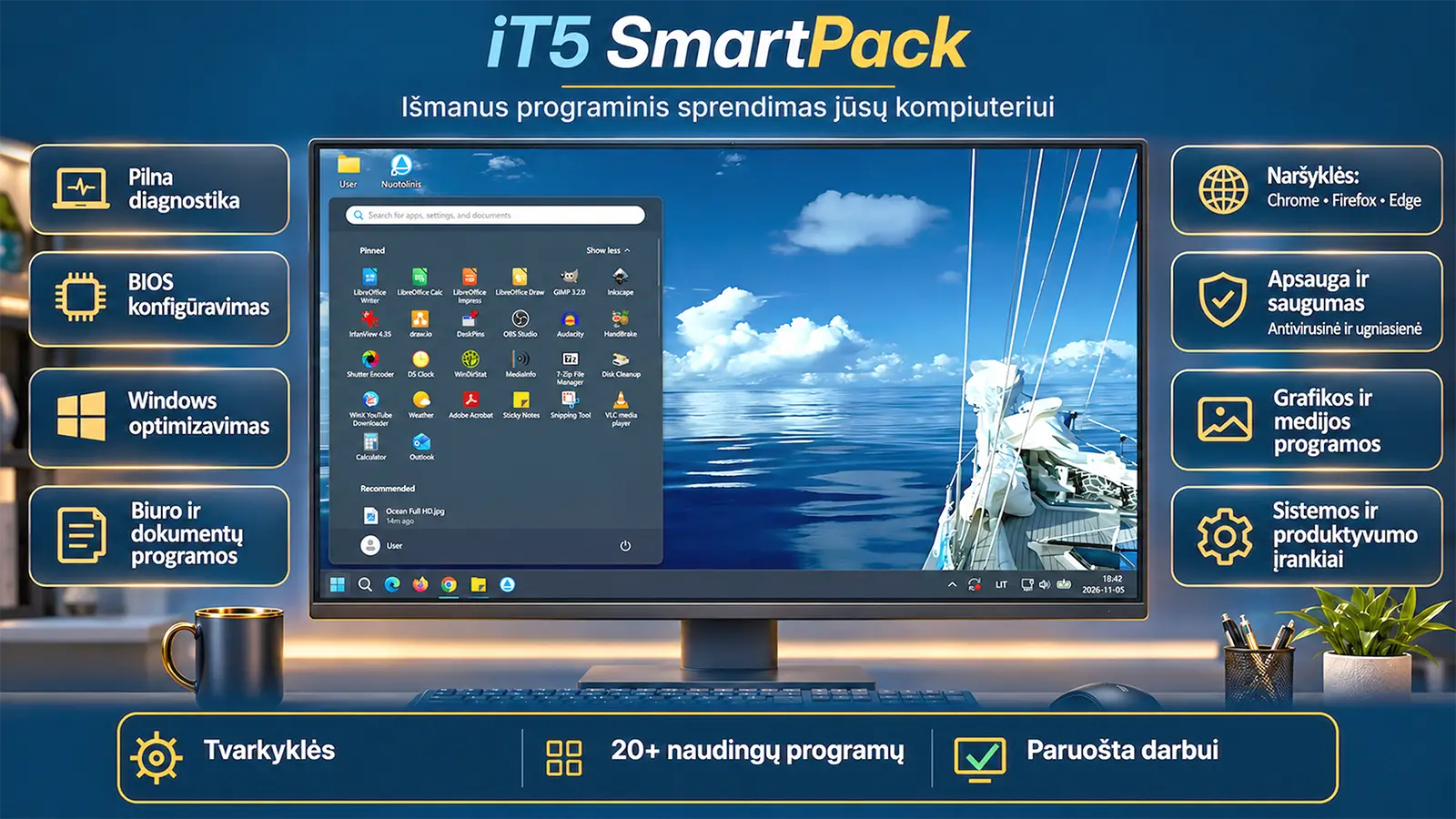
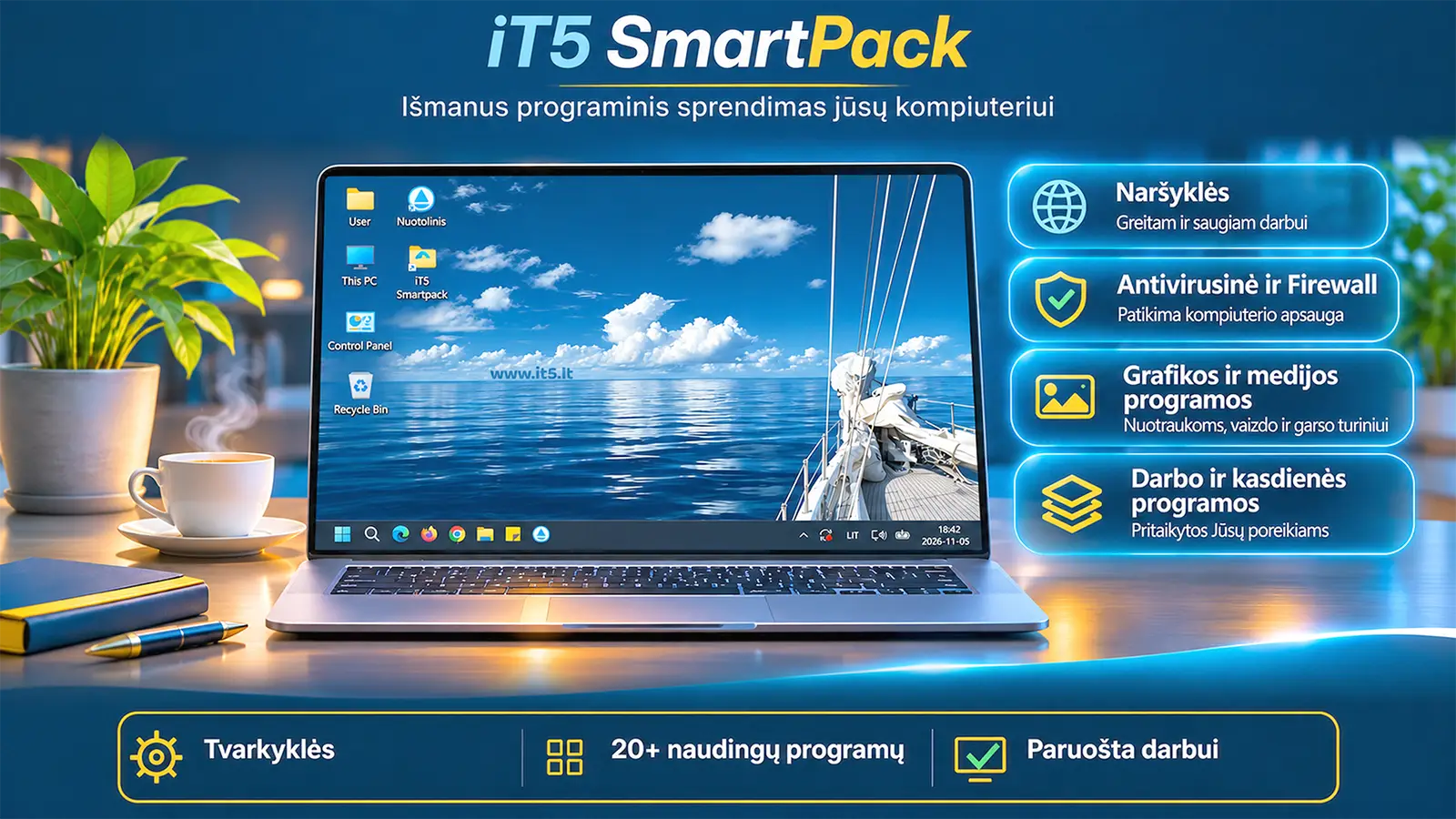


Windows ready to use with 24 configured applications
iT5 SmartPack – a computer setup service covering hardware checks and individual configuration of Windows and all 24 applications. We prepare each computer systematically: checking the hardware, updating drivers, adjusting system settings, configuring applications and testing the resulting working environment.
We do more than install applications: we configure each one according to the iT5 SmartPack standard, adapt it for everyday use and test its main functions. You can start working straight away, without spending time configuring applications and system settings.
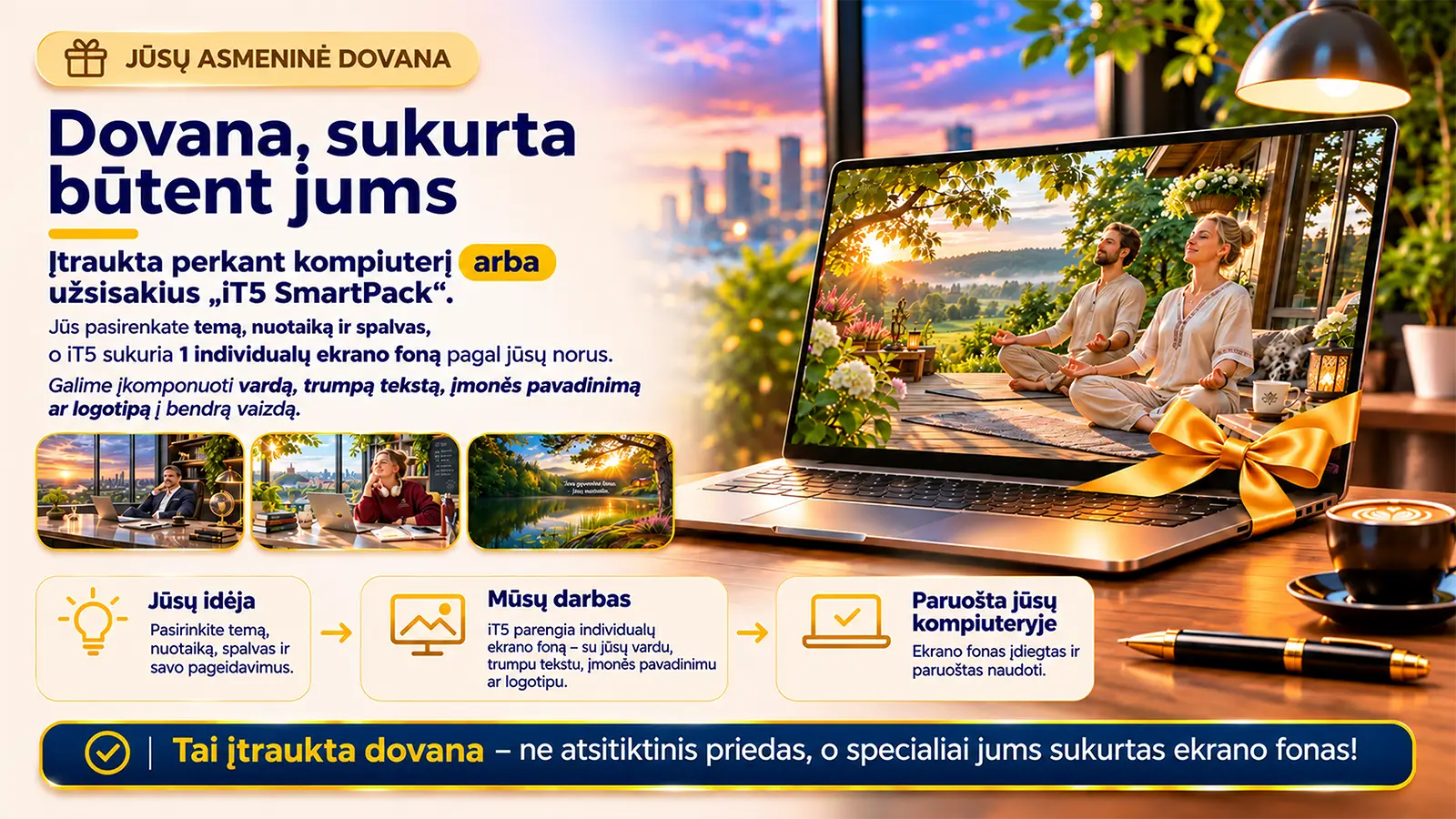
Your idea. Your mood. Your wallpaper.
Choose your favourite theme, colours or mood, and we will create one personalised desktop wallpaper and adapt it to your screen. This gift is included in iT5 SmartPack, whether you buy a computer prepared with the package or order the package separately.
We can subtly incorporate a motivational quote that means something to you, an inspiring message, your personal motto, a name, your company name or logo.



What work do we carry out?
We prepare each computer using a structured technical checklist. Specific settings depend on the computer model, Windows version and hardware capabilities. The principle is always the same: check, configure and test.
Three main setup steps. All six stages are described in detail below.
Hardware diagnostics
We check not only the main components but also the ports and devices important for everyday use.
- Condition, temperatures and performance under load of the processor, memory, storage drives and cooling system.
- USB, HDMI, DisplayPort, USB-C, memory card readers and other available ports.
- Display, keyboard, touchpad, camera, speakers, microphone and headphone jack.
- Laptop battery charging and power adapter detection.
BIOS / UEFI and hardware settings
We check system startup and hardware management settings according to the computer model.
- Boot mode, device detection and boot order.
- Power, screen brightness and keyboard backlight options, where supported by the hardware.
- Assessment of BIOS / UEFI update requirements and compatibility.
- Where needed, we retain diagnostic results that may be useful for maintenance.
Windows and driver updates
We prepare the operating system and check that all hardware is correctly recognised.
- Windows and security updates, with further checks after restarting when necessary.
- Chipset, graphics, network, audio and other device drivers.
- Device status checks and restoration of functionality for unrecognised devices where possible.
- Verification of operating system activation status and basic functions.
Comprehensive Windows configuration
This is one of the key parts of SmartPack: we tailor the everyday working environment and system settings.
- Lithuanian regional settings, time zone, date, languages and keyboard layouts.
- Desktop, Start menu, taskbar, file extension visibility and File Explorer.
- Power management, sleep modes, display, mouse, sound and microphone sensitivity settings.
- Startup applications, default file associations and notification preferences.
- Where needed, we adjust specific Windows Registry settings while preserving important system security features.
Configuration of all 24 applications
We prepare each installed application according to the iT5 SmartPack standard – installation alone is not enough.
- When first launching each application, we select its settings and tailor its interface and main functions.
- We set which applications open documents, PDF files, photographs, archives, audio and video files.
- We configure settings for browsers, LibreOffice, 7-Zip, and video and audio tools.
- We check that applications launch correctly. We leave an iT5 SmartPack information folder and a separate remote support shortcut on the desktop.
Security and final checks
After installing applications and adjusting settings, we check the system status and the prepared working environment.
- Check Windows security, firewall and update status. We do not disable security features merely to reduce notifications.
- Removal of unnecessary installation and temporary files while preserving system recovery options.
- Check system restart, key applications, file opening and operation of essential devices.
- Once the computer is ready, we remove temporary remote access and disable automatic startup of the remote support application. We leave a desktop shortcut so customers can launch it themselves when needed.
What exactly do we configure?
Installing an application and preparing it for use are not the same thing. We therefore configure both the operating system and all applications installed alongside it.
Windows – beyond default settings
- We tailor the everyday interface, File Explorer, menus and essential system tools.
- We configure regional, keyboard, date, audio, display, device and power management settings.
- We check drivers, updates, startup applications and default applications.
- Where necessary, we make specific Windows Registry changes while maintaining system security.
- Creation, adaptation and application of one personalised desktop wallpaper based on your chosen theme.
24 applications – individually configured
- When first launching each application, we check and adjust its main settings.
- We select appropriate file formats, viewing, saving and workspace settings.
- We set which applications open documents, PDF files, archives, photographs, audio and video files.
- We make applications, their user guide and other useful information easy to find.
Examples: we select default applications in advance so you do not need to choose how to open a file every time.
All 24 applications – already on your computer
We install, individually configure and retain all 24 standard applications on the computer. You can remove unused applications yourself or ask us to do so before purchasing the computer.
Applications installed and ready for work
The applications cover documents, PDF files, photographs, drawings, audio and video, web browsing and system maintenance. We configure each application according to the iT5 standard and test its main functions.
The purpose, features and instructions for the standard applications and optional screen magnification tool are explained in a separate software guide, so you do not need to search for information about each application yourself.
iT5 SmartPack folder
We leave a desktop folder containing the software guide, SmartPack description and useful learning materials. Installed applications can be launched in the usual way.
Files and archives
7-Zip · WinDirStat
Internet
Google Chrome · Mozilla Firefox · Microsoft Edge · WinX YouTube Downloader
Graphics and technical drawings
GIMP · Inkscape · diagrams.net (draw.io) · IrfanView · Autodesk DWG TrueView
Documents and office tools
LibreOffice · Adobe Acrobat Reader · DSASK · DMOK · TELSAR
Audio and video
Audacity · OBS Studio · Iriun Webcam · VLC Media Player
System utilities
DS Clock · SharpKeys · DeskPins · Keyboard Locker
Full-screen magnification – on request
All screen elements are magnified. Zoom increments are 25%. To turn off Magnifier, press Windows + Esc.
Using an AutoHotkey script, we customise the controls of the built-in Windows Magnifier. It magnifies the entire screen, including application windows, text, icons and the taskbar, rather than just the page displayed in a browser.
We install this feature only at your request, before handing over the computer or later by arranging remote support.
How to use screen magnification →Software licences. Licensing terms vary between installed applications. Some applications (such as IrfanView) may require a separate licence for business or commercial use. Paid third-party licences are not included in the SmartPack price. Application features depend on their versions and the terms set by their developers.
Desktop – information and support at your fingertips
We prepare your computer so that, when you start working at home or in the office, you can easily find the information you need and contact iT5 if required.
iT5 SmartPack folder
Links, examples and educational materials in one place:
- Software guide and SmartPack description.
- Internet speed test, iT5 videos and an 8K video playback test.
- Information on recognising online scams and ransomware.
- Computer anatomy, a draw.io usage example and accounting applications.
Separate remote support shortcut
A separate desktop shortcut lets you launch the remote support application when needed. Once you start using your computer at home or in the office, we can help connect a printer, configure email and applications, or adjust other settings.
You control the connection. iT5 cannot connect through the remote support application until you launch it yourself and provide the connection credentials. The application does not start automatically with Windows. We do not configure unattended access. At the agreed time, you provide the ID and password displayed by the application, can watch the work being carried out and can end the remote session at any time. Close the application once the remote session has ended.
The scope and price of remote support are agreed separately.
We do not configure automatic startup or unattended access.
Personalised wallpaper – a gift for your computer
What is wallpaper? It is the image you see on your computer desktop behind the application icons. We can create it around your work, interests, favourite colours or chosen theme, such as travel, nature or music.
You choose the theme, and we create one personalised wallpaper, adapt it to your screen and set it on your computer. This artwork is our gift when you order iT5 SmartPack separately or purchase a computer prepared with the package.
Want to make your wallpaper even more personal? We can incorporate a name, a motivational quote, an inspiring message, a short text, your company name or logo into the overall design at no extra charge. You can choose a completely different theme for additional wallpapers. Designs incorporating photographs of people that you provide are ordered separately. If you wish, we can help you craft a meaningful message to suit your chosen theme.
How to order your wallpaper?
Tell us what you would like to see on your screen: the theme, mood, colours and screen resolution (if known). Include any motivational quote, inspiring message, name, short text or company name you would like. If you want us to incorporate a logo or photographs of people, attach the relevant files to your email.
Clicking the button opens a pre-filled email template in your email application, provided it is configured. Please attach photographs and logos yourself.
One wallpaper based on your chosen theme is included in SmartPack. Additional artwork and artwork incorporating photographs of people are ordered separately.
Based on your chosen theme. Names, motivational quotes, text, company names and logos are included at no extra charge. Incorporating photographs of people is not included.
Each additional design is based on any theme you choose. You can select a completely new idea, colours and style. Names, motivational quotes, text and logos are included.
We incorporate photographs of you, your family or your team into an image created to your specifications.
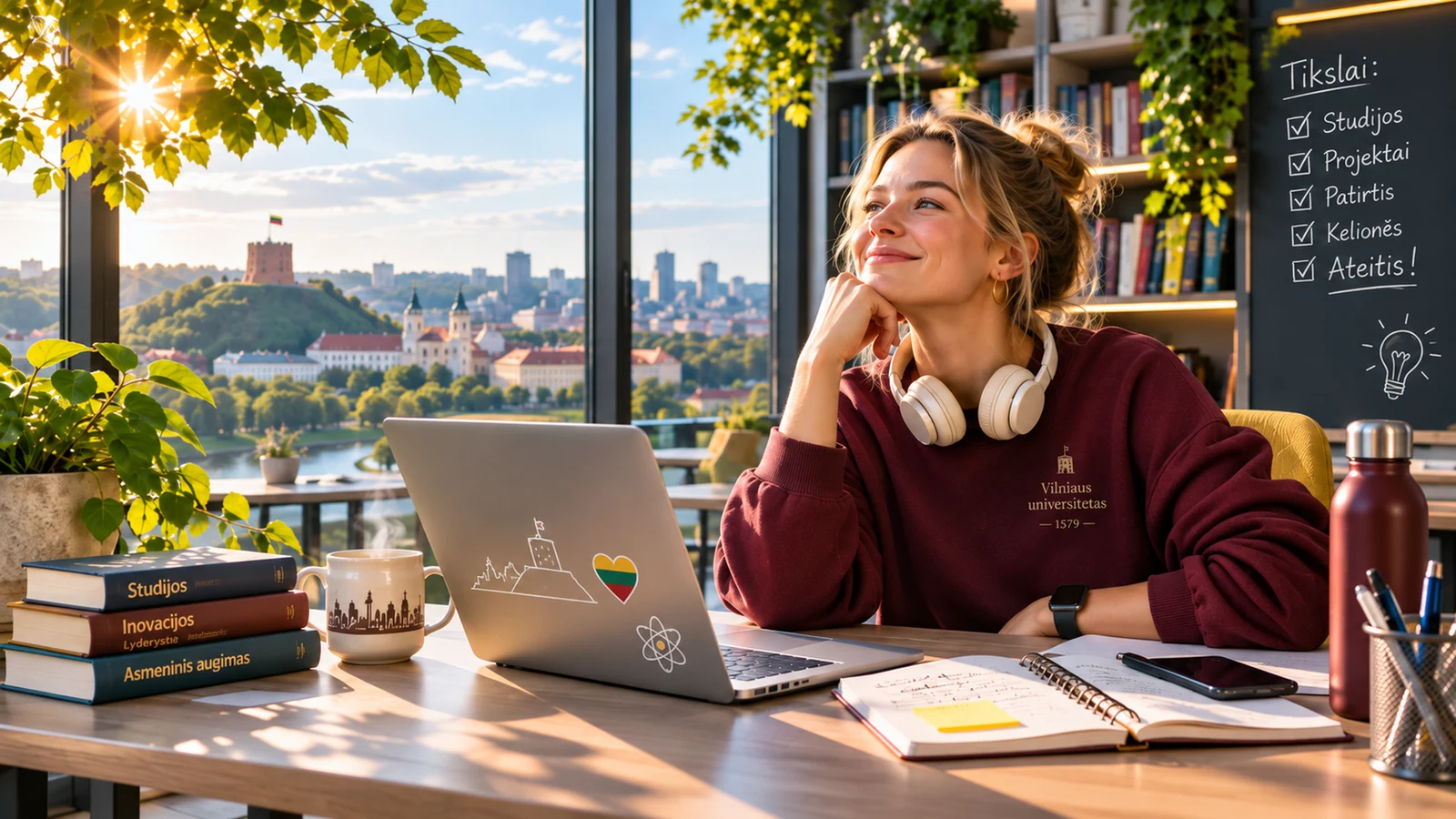
16 creative examples to inspire your ideas. Studies, family, pets, travel, music, sport, business, nature, space and inspiring thoughts – a variety of themes we can adapt to your idea. Click a thumbnail to view the artwork at a larger size.
 Enlarge ↗
 Enlarge ↗
 Enlarge ↗
 Enlarge ↗
 Enlarge ↗
 Enlarge ↗
 Enlarge ↗
 Enlarge ↗
 Enlarge ↗
 Enlarge ↗
 Enlarge ↗
 Enlarge ↗
 Enlarge ↗
 Enlarge ↗
 Enlarge ↗
 Enlarge ↗
The gallery showcases examples of our artwork. You can also suggest an entirely new theme. When fulfilling creative orders, we comply with copyright, the General Data Protection Regulation (GDPR) and other applicable legal requirements. Please supply only images and logos you have the right to use. We do not publicly share customers’ personal photographs or their commissioned artwork without separate permission.
What's included and what's ordered separately?
Included in SmartPack
- Inspection of the computer's main components and functions.
- Checking BIOS/UEFI settings and comprehensive configuration of the Windows working environment, including specific Registry adjustments where needed.
- Verification of system updates, device drivers and security features.
- Installation and individual configuration of all 24 standard applications.
- Final operational checks of the prepared system, applications and devices.
- iT5 SmartPack information folder, separate remote support shortcut and optional screen magnification feature (on request; subsequent work is arranged separately).
- One personalised desktop wallpaper created around your chosen theme.
Work arranged separately
- Previous computer workspace and data migration to a new computer or storage drive.
- Full system backup and recovery.
- Remote support after equipment handover.
- Paid operating system and software licences and their activation under agreed terms.
- Additional repairs, component replacement or non-standard setup.
What else can we help with?
A prepared computer is a good start. If you want to migrate your previous working environment, arrange recovery options or receive support later, you can order these services separately.
System migration and disk cloning
When changing computers or storage drives, we can migrate your existing Windows system, installed applications, settings and data. Before migration, we assess hardware and system compatibility.
About system migration →System backup and recovery
We can create a full computer system backup and retain it for an agreed period so that your previous working environment can be restored in the event of a failure.
About backups →Remote support
If you need help with Windows, applications, email or other settings while using your computer, we can connect remotely at an agreed time and assist you.
About remote support →These services are not part of SmartPack. Their scope and prices are provided on the corresponding service pages.
Frequently asked questions
How long does computer setup with SmartPack take?
Hardware testing, installation of Windows and 24 applications, individual configuration and final testing can take up to 5 hours. The duration depends on the computer model, hardware condition and updates.
Do you really install all 24 applications?
Yes. We install all 24 standard applications and configure each one according to the iT5 SmartPack standard. AutoHotkey is installed only on request. You can also request this feature later. Before handing over the computer, we can remove applications you do not want.
Will I need to find applications and installation files myself?
No. The applications are installed and ready to use. The iT5 SmartPack desktop folder contains a link to the comprehensive software guide and other useful information.
Is a Microsoft Office licence included?
No. SmartPack includes LibreOffice and other applications in the package, but paid Microsoft Office, Windows or third-party licences are purchased or used under separate terms.
Does SmartPack replace a system backup?
No. Computer setup and system backup creation are different tasks. We offer full system backup and recovery as a separate service. More about backup and recovery →
Will documents from my old computer be transferred automatically?
No. SmartPack prepares your computer. Migration of data or an existing system from previous equipment is arranged separately. More about system migration →
Can I choose a personalised desktop wallpaper?
Yes. One wallpaper created around your chosen theme is included in SmartPack, whether you buy a computer prepared with the package or order the package separately. We can incorporate a motivational quote, an inspiring message, a name, your company name or logo at no extra charge. You can choose any other theme for additional wallpapers. Designs incorporating photographs of people that you provide are ordered separately. Explore the examples and send us your preferences →
Can iT5 connect to my computer without my knowledge?
No. We can connect through the remote support shortcut we provide only after you launch the application yourself and supply the connection credentials. We do not configure automatic startup or unattended access. Close the application once the remote session has ended. More about remote support →
Can I magnify the entire screen using the mouse wheel?
Yes. On request, we configure Windows Magnifier using AutoHotkey. By holding down the Windows key and scrolling the mouse wheel, you can zoom in or out across the entire screen, including the taskbar. You can request this feature after purchasing your computer as well.
Would you like to discuss computer setup?
Contact us if you would like to discuss hardware configuration, the SmartPack package or additional work before we prepare your computer.
Get to know iT5
A brief introduction to our work and IT services.